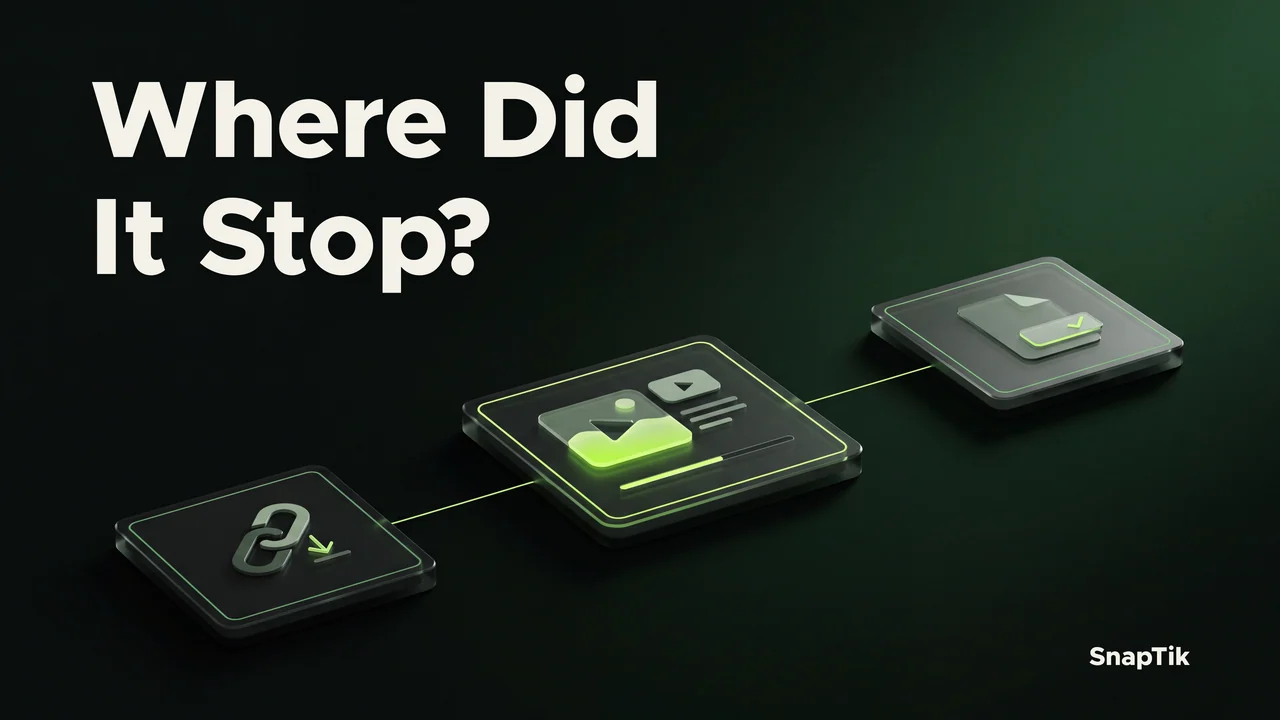
First identify where the attempt stopped. A Processing message means the website is still working on the post request. A result page means media options have been found. An item in the browser's download list means a file transfer has started. Check the stage you can actually see before retrying, because a problem in one stage is not fixed by repeating an action from another.
Use the last completed step as your starting point
A moving loading bar is feedback that a request is active. It is not necessarily a measurement of bytes being saved to your device. The website can be waiting for a media source while the browser has no file to transfer yet. Conversely, a completed website request can be followed by a slow or failed browser transfer.
This distinction helps you avoid blaming storage for an invalid address or changing the link when the file is already downloading. Read the message, check whether results are visible, and open the browser download list only when you have selected a result. The most useful question is which step definitely completed, rather than how many seconds the page has felt slow.
If the request has not moved beyond Processing
Keep the page open while the request is active and avoid pressing Download several times. A slow response can come from the connection or from the source being contacted. Switching rapidly between networks, refreshing the page, or navigating away makes it harder to determine whether the original attempt was still working. Wait for the page to provide a result or a message you can act on.
If you receive an input error, use the guide to fixing an invalid TikTok link. If the request ends with a temporary failure, verify that your connection works and that the post still opens normally where you are allowed to view it. When those checks are complete, you can start a fresh request on SnapTik. A fresh request should be a deliberate new attempt, not a continuous cycle of repeated button presses.
If results appear but no file is in Downloads
The presence of results means you have reached a choice, not necessarily the end of saving. Select the type of media you want and watch for a browser confirmation or an explicit Save action. A video preview may play inside the page without creating a separate file on your device. Audio, individual photos, and photo archives are also different choices.
Some results require preparation before the save action becomes available. For example, building a photo archive involves preparing its images rather than merely opening a remote video URL. Let the visible preparation finish. If it fails, read the message and choose another available result only if that result actually meets your needs. Do not assume an unavailable option can be created by changing a filename.
If the browser transfer is paused or failed
Now inspect the browser's own download list. It may show a pause control, a retry option, or a specific error. A paused transfer can sometimes continue with the browser's resume action. A missing or expired source may require a new result instead. Record the message before replacing the attempt, because it can distinguish a network interruption from a storage or permission issue.
Check that the destination is available and that the device has room for the file. A disconnected external drive or an inaccessible folder can prevent saving even when the website responds correctly. Review storage space and duplicate files if capacity is low. Do not disable browser protection to make a blocked item appear to work; a security warning needs its own assessment.
If the file saved but the media does not open
At this stage, focus on the local copy. Confirm that the download is complete, inspect its extension, and open it in an appropriate media app. A ZIP archive should not be expected to play like an MP4. An MP3 may be working correctly even though it does not appear among videos. An empty file or a file containing an error page is not a usable media result.
Use the downloaded video playback checks for a saved MP4 that fails to open. That guide separates incomplete files from player compatibility. Keep one clearly identified attempt while testing. Accumulating several similarly named files makes it harder to compare the results and can hide which one was actually interrupted.
If the browser reports completion, use the file manager to locate the result. Looking only at the results page can leave a successful local save unnoticed.
Make the next attempt provide useful information
Change one relevant thing at a time. If other pages fail too, stabilize the connection before retrying. If only one post fails, check that post's availability. If several completed files fail in one player, examine the player and file types. This approach produces a clearer diagnosis than simultaneously changing the browser, network, link, and destination folder.
For a persistent problem, note your device, browser, post type, the last completed step, and the exact visible error. Say whether results appeared and whether a local file was created. You do not need to include passwords, cookies, or account access information. A short description such as results appeared but the browser reported insufficient space tells support much more than saying that downloading never works.