The available source, its compression, its dimensions, and the way you view it all affect a downloaded video's appearance. A downloader cannot recreate detail that is absent from that source. A large file or an HD label is not enough to judge quality. Compare the actual saved video and inspect its properties before deciding whether it is suitable for your intended use.
Begin with the source that actually exists
A camera recording, an editing project, an exported video, and a posted copy are different assets. The posted copy may already have passed through editing and compression before a downloader sees it. If small text was blurred earlier or fine texture was removed, saving that available copy cannot recover the missing information. Keep this in mind when comparing a download with a creator's original recording.
You can check the video available through SnapTik, but availability should not be read as a promise of a particular resolution. Choose from the actual results provided and inspect the saved file. If your work requires the camera original or a specific delivery format, obtain that asset from your own archive or from the creator with permission rather than assuming the posted version is equivalent.
Separate dimensions from visible detail
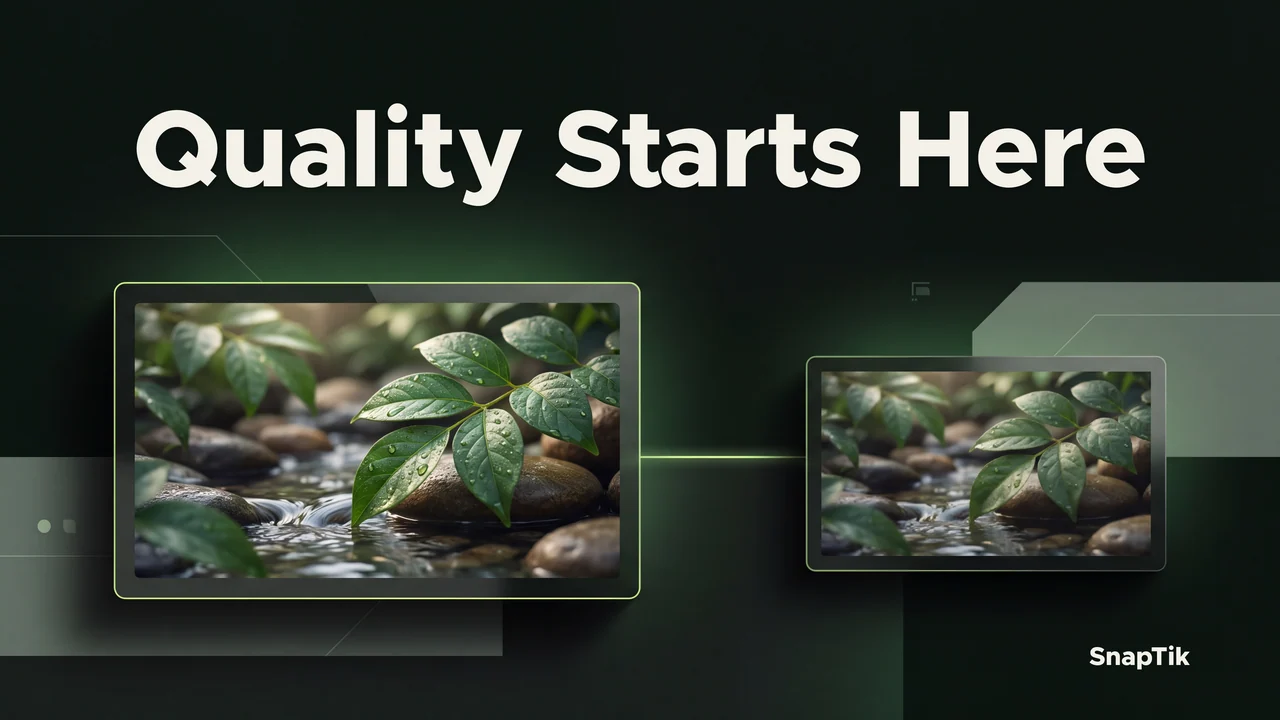
Resolution describes the number of pixels in a frame. A portrait video might have dimensions such as 1080 by 1920, but that is an example of a file property, not a guaranteed SnapTik output. Two files with equal dimensions can still look different because the detail inside those pixels has been recorded and compressed differently.
Viewing scale matters too. A video that looks clean in a small phone preview may look softer when enlarged to fill a desktop display. Compare the same frame at a similar display size before judging the download. Avoid zooming far beyond the frame's natural size and treating the enlarged result as evidence that the file was damaged during saving.
Compression and bitrate explain different tradeoffs
Bitrate describes how much data is used over time, while compression determines how the media is represented within that data. Fast movement, fine texture, and small lettering can be harder to preserve than a largely still scene. Visible blocks, smearing, or ringing around edges can therefore be more noticeable in certain parts of a clip than in others.
A bigger file is not automatically a better version. Duration, audio, frame rate, and encoding choices also affect size. Compare files containing the same content for the same length before drawing conclusions. A long clip can be larger than a short one even when it looks less detailed. File size is a practical storage fact, but it is not a universal score for image quality.
Inspect the saved media, then watch representative moments
On a Mac, open the file in QuickTime Player and use Window, then Show Movie Inspector. It can display information such as dimensions, format, and frame rate. Other operating systems and media apps expose different sets of details. Read the properties they actually provide rather than assuming every device reports every value in the same place. If you still need to locate that copy, the Safari download workflow on Mac shows how to move from the browser list to Finder.
Then watch several useful samples: a quiet frame, a moving section, and a part containing any text you need to read. This gives you a better assessment than one attractive thumbnail. If playback stalls or the picture does not decode at all, use the guide to a downloaded video that will not play. Compatibility or incomplete transfer is a separate issue from a playable file that looks soft.
Use the same viewing conditions for a fair comparison. Different zoom levels or display sizes can exaggerate a difference that is much less noticeable at normal playback size.
Avoid unnecessary generations of the same clip
Repeatedly exporting an already compressed video can introduce additional changes. A useful workflow keeps one verified source copy and creates separate working exports when needed. This makes it possible to return to the best version you actually possess instead of using yesterday's compressed export as tomorrow's only source. Give those versions names that reflect their purpose.
For your own content, the creator backup workflow separates originals, projects, and posted copies. A downloader can help you retain an available posted version, but it does not replace the editing project or restore layers and settings. Preserve your original recording before publishing when possible, especially when later edits may need tighter crops or readable details.
Choose the result that matches the job
For a photo post, saving a generated video and then capturing a frame adds steps when you may only need an individual still image. For a moving demonstration, a folder of JPEG images cannot preserve motion between frames. The guide to choosing photos or video for a slideshow helps match the available output to the task instead of treating every format as another quality setting.
Decide what makes the file useful before evaluating it. A reference clip may need readable captions and intelligible sound. An editing asset may need more detail and a compatible format. If the available copy does not meet that need, say so and seek a suitable source rather than adding an HD label. An honest assessment of the actual media is more useful than an unsupported promise of sharper results.