A media download should match the task you chose. If you expected a video but receive an installer, a request for an account password or instructions to disable a browser protection, stop and check what happened. A familiar-looking button is not enough to identify a trustworthy action. Read the destination, the browser's message and the file type together. These checks help you recognize a mismatch without assuming that every warning has the same cause or that a filename proves a file is safe.
Know the output you expected
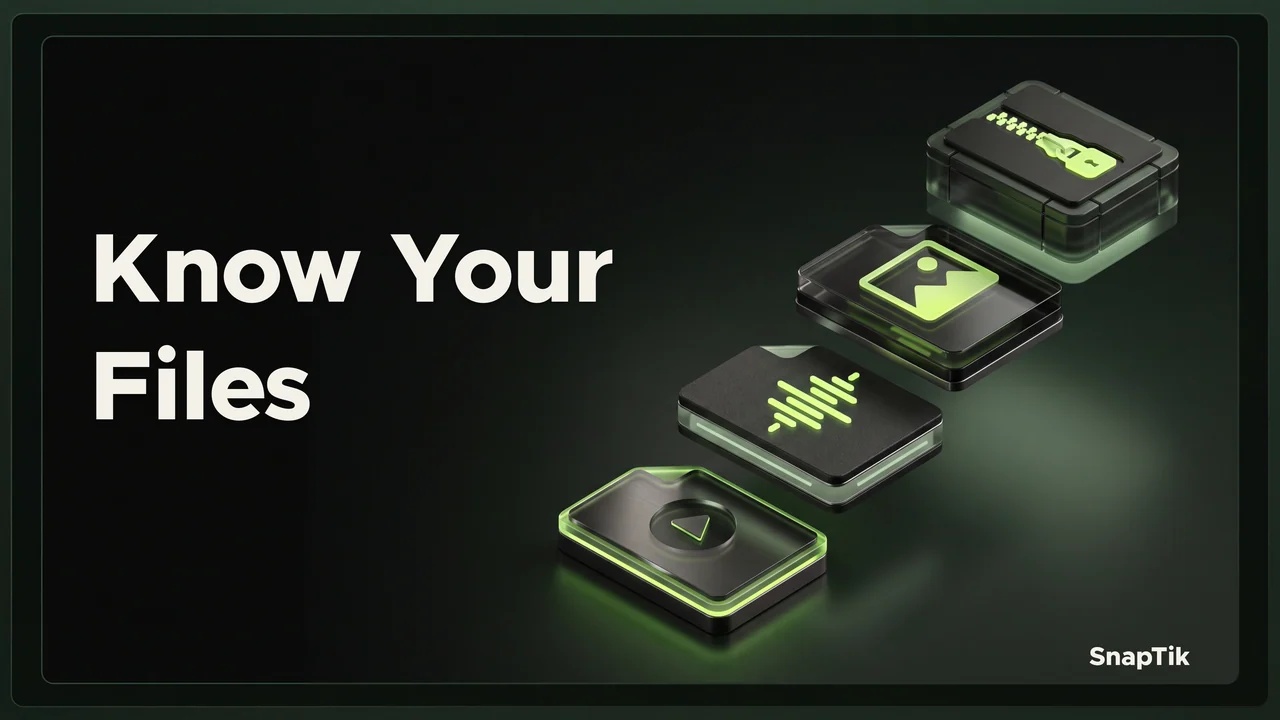
For SnapTik, the expected media outputs are MP4 video, MP3 audio, JPEG photos and a ZIP archive for slideshow photos. Availability depends on the post and the options returned. Keep that expectation in mind before accepting another download or opening a file from a browser notification.
If you intended to use the SnapTik website, verify the page you are on before submitting a post link. A search result, browser tab or pop-up can lead somewhere different from the page you first opened. Familiar colors and a copied brand name are not reliable evidence by themselves. Look at the complete address in the browser's own interface.
The file format explanation describes what each available output contains. This makes it easier to notice when a proposed action is unrelated to your goal, such as downloading an application package when you only asked to save an audio clip.
Treat unexpected installation requests as a separate decision
An ordinary browser media download does not require you to install an unknown browser extension, device profile or executable program. If a page presents one of those actions, do not treat it as an automatic step in saving the video. Read the request independently and leave it unapproved when it is not needed for your task.
Some operating systems offer legitimate ways to install a website shortcut or web app. That is different from accepting an unrelated installer. SnapTik's web app provides a way to reopen the site, but installation is optional and does not grant access to unavailable media. A shortcut is also not a promise that new downloads can be processed without internet access.
On a shared or managed device, follow the owner's installation policy. Avoid running a downloaded file just to discover what it does. If you cannot identify it, keep it unopened and use the device's normal security or support tools to decide how to handle it.
Keep passwords and permissions out of the wrong flow
A post link is not your TikTok password. Do not enter an account password into an unfamiliar page because it says the password will unlock a media download. Likewise, a request for payment details, a verification code or remote control of your device deserves a separate explanation and should not be accepted as a routine part of this task.
Browser permissions also need context. Clipboard access can relate to a Paste button that you intentionally pressed, but permission to send notifications does not itself retrieve a video. Read what the browser says the permission allows, rather than relying only on a page's instruction to select Allow.
When a permission is declined, you may still be able to complete an ordinary action another way. For example, manually pasting a copied link into a field does not require trusting an unexpected pop-up. Choose the smallest action that fits the task and stop if the page keeps redirecting you into unrelated requests.
Read browser warnings rather than dismissing them
Browsers may block or warn about downloads for several reasons, including unsafe content, unfamiliar files or connection problems. The warning is information about a condition that needs attention. Do not follow a webpage's instruction to switch off protective settings simply to make its download button work.
Use the browser's own details to understand the message. If you are unsure, cancel the action and return to a known starting point. A failed transfer and a security warning are different problems, so advice intended for a weak connection should not be used to override a safety decision.
Private browsing does not remove this need for care. The private browsing and downloaded files guide explains why saved files remain separate from the browsing session. Closing a private tab will not necessarily remove an unwanted file that you already saved.
Inspect the file without relying on its icon
A file icon can reflect an application association rather than a complete explanation of the contents. Show the full filename and extension in the file manager when possible. If you expected an MP4 and see a program extension instead, do not launch it as though it were the requested video.
The Windows file identification guide covers extensions and file properties in more detail. Similar checks are useful on other systems through their normal file information tools. A correct extension is a useful clue, but it is not an absolute security guarantee.
When something does not fit, stop at that point. Close the unexpected page, cancel the transfer if it is still running and avoid entering additional information. Once you have returned to a known page and confirmed the intended post, make a fresh, deliberate request. The goal is to keep each step understandable rather than clicking through several unrelated prompts in the hope that one eventually produces the media.